Setting up Fresha
The integration with Fresha is somewhat limited. Fresha will reflect Phorest diary availability and Phorest bookings will automatically be blocked out in Phorest. However it will not be highlighted whether the appointment is prepaid or unpaid, nor any details about the customer, their contact details or serivce - this will need to be checked in Fresha directly.
To set up staff, click the main "Team" menu, and for each member of staff click 'edit' (see image above).
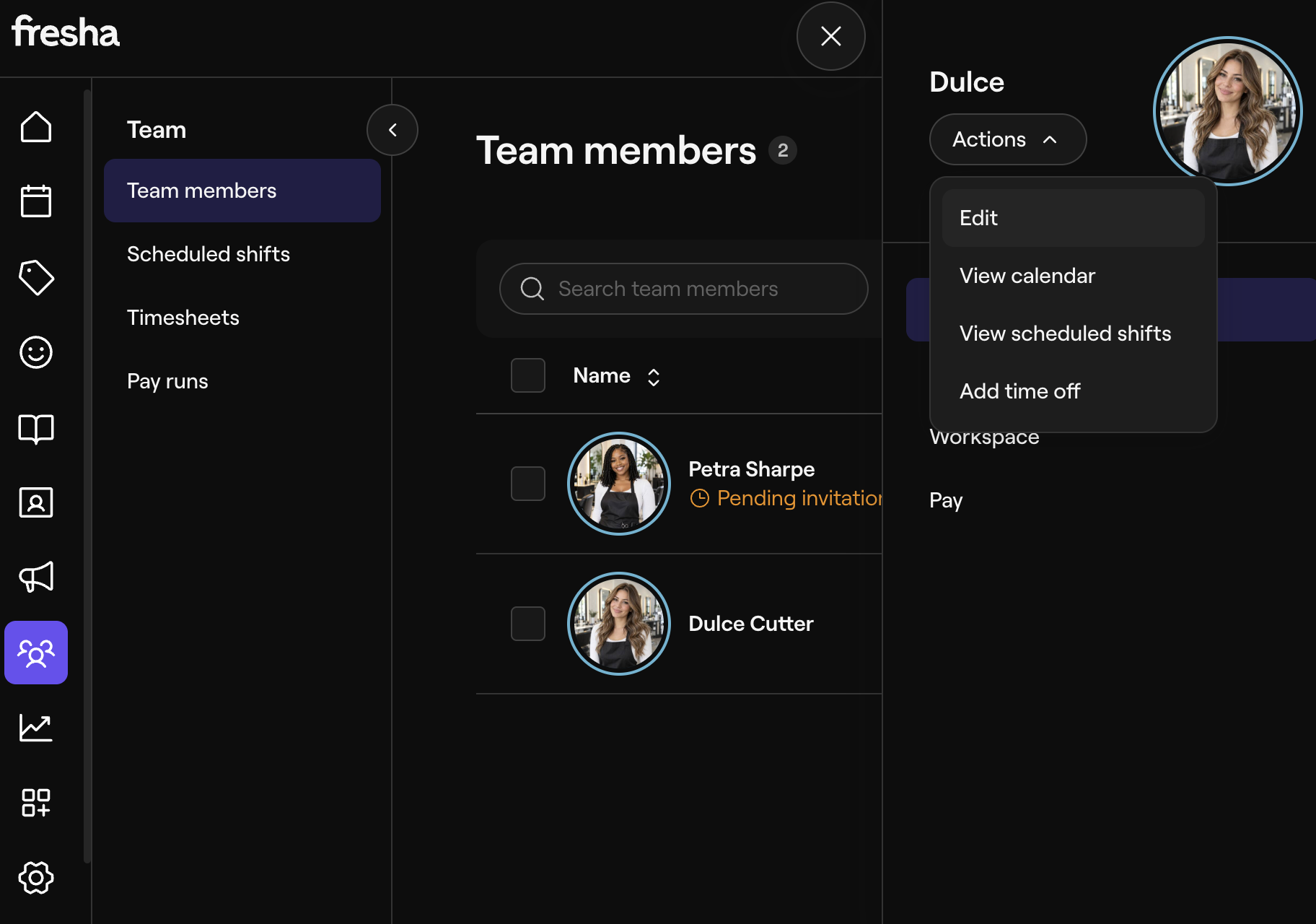
Now click 'settings' and scroll down to the 'Linked Calendars'.
Click 'add Linked Calendar' > 'Other calendar' > 'Import events from an external calendar' > Add the booking connect iCal link here and click 'Complete'
Click 'add Linked Calendar' (again) > 'Other calendar' > 'Export events to an external calendar' > (leave 'Blocked times' unchecked > Click 'Complete' > Copy the link that is given and paste it back into Booking Connect (in the 'Fresha iCal' field). Click Save.
