Rooms (beta): putting Treatwell and ClassPass bookings into a free room
When a Treatwell or ClassPass booking arrives, Booking Connect can put it into a room in Phorest for you, using the first room that is free. You choose which rooms suit each service. This is a beta feature: turn it on first, as described in Rooms (beta): turn them on and see when each room is free.
Adding Treatwell and ClassPass bookings to Phorest is part of the Plus plan, so this applies to salons on Plus.
Choose rooms for each service
Step 8 of your Setup page lists the types of booking you have had in the last four months, from both Treatwell and ClassPass, most common first.
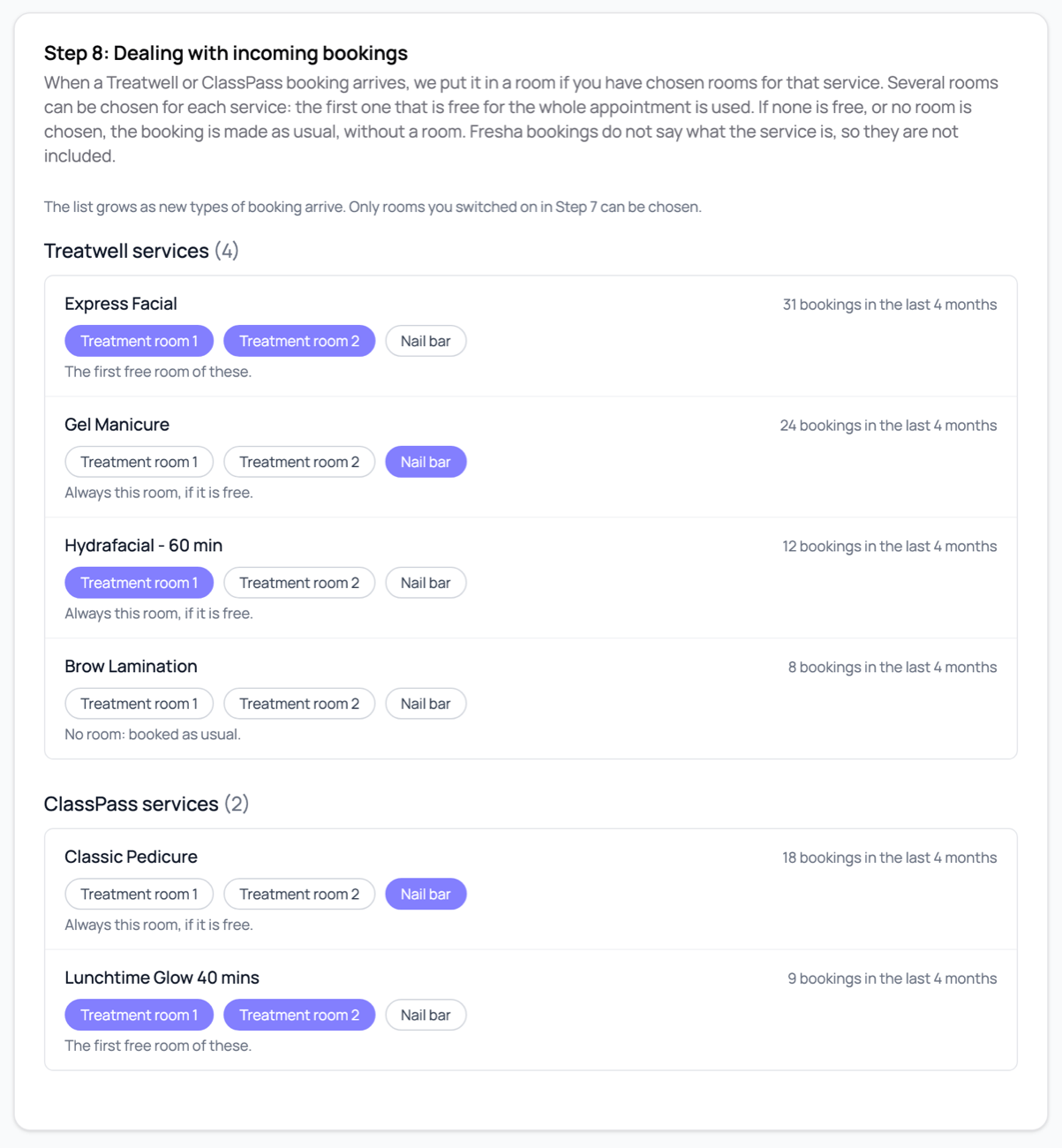
Treatwell services are listed by their name and option, as they appear on your Treatwell menu.
ClassPass services are listed by the service named in the ClassPass calendar entry.
Press a room to choose it, and press it again to remove it. You can choose several rooms for one service.
Only rooms you switched on in Step 7 can be chosen.
The list grows as new types of booking arrive, so a new service appears the first time one is booked.
Fresha isn't included, because a Fresha booking doesn't say what the service is.
What happens when a booking arrives
Booking Connect looks at the rooms you chose for that service.
It tries them in name order (A to Z), and uses the first one that is free for the whole appointment. Appointments and breaks both count as booking a room.
It creates the booking in Phorest with that room on it. Phorest shows the room, and the booking in Booking Connect notes which room was used.
A few things to know:
No rooms chosen for a service: the booking is made as usual, with no room.
No room free: the booking is still made, without a room, and you get the usual "processed with warnings" email saying no room was free.
Processing time (for example colour developing) isn't put in the room, so the room counts as free during it.
If Phorest doesn't accept the room, the booking is still made, without one.
Prepaid or unpaid makes no difference to the room. It only affects which Phorest service the booking uses. See Treatwell prepaid vs unpaid bookings in Phorest.
Appointment or blocked time: if a Treatwell service is set to create blocked time rather than an appointment, the blocked time goes into the room. ClassPass bookings are always blocked time, so they go into the room that way.
Rescheduling and cancelling
Rescheduled bookings. When a Treatwell booking is rescheduled, Booking Connect checks the room again at the new time:
If the booking's room is still free, it stays there.
If not, it moves to the next free room you chose for that service, and the confirmation email says so.
If no room is free, it stays in its room, and you get a warning email asking you to check it.
A ClassPass reschedule works the same way.
Cancelled bookings. The room is free again as soon as the booking is removed from Phorest. If Phorest refuses a late cancellation because of your cancellation period, the appointment stays in the diary, and so does the room, until you cancel it by hand.
Good to know
Two bookings arriving at the very same moment could both pick the same room. It's rare, and Phorest will show both.
If you switch the beta off, no more bookings are put into rooms. Bookings already in a room stay there.
Booking Connect is an independent service. It isn't run by Treatwell, Phorest, Fresha or ClassPass.